WhatsApp Plus Privacy Features Hide Last Seen & Blue Ticks
Privacy is one of the main reasons people choose WhatsApp Plus over the official app. Not privacy in the encryption sense, but the everyday kind: controlling what your contacts can see about when you’re online, what you’ve read, and what you’re doing right now.

The official app gives you blunt switches. This one gives you a dial. Here’s what’s in the menu and how to set it up properly.
What Makes the Privacy Menu Different
Official WhatsApp ties your settings together on purpose. Hide your last seen and you lose the ability to see anyone else’s. Turn off read receipts and yours stop working too. The reciprocity is deliberate.
WhatsApp Plus breaks every one of those links. You can hide yours and keep theirs, hide from one person and not another, and freeze rather than hide.
Whether that asymmetry sits right with you is a fair question. It’s the feature, either way.
Hide Your Last Seen
Last seen shows when you were most recently active. The official app lets you hide it from everyone, nobody, or your contacts, and hiding it hides theirs from you too.
In the mod, hiding yours costs you nothing. You still see everyone else’s timestamp.
The setting sits in the mod’s privacy menu as a straight toggle. Most people turn it on and never think about it again.
Freeze Your Last Seen
This is better than hiding for most people, and it’s the more interesting option. Instead of showing nothing, freezing locks the timestamp at a moment you choose.
Others see a time that simply never updates. Hiding tells people you’re hiding, which is itself information. Freezing tells them nothing at all.
Pick a plausible time when you set it, since a last seen frozen at 3am looks odd to anyone paying attention.
Hide Blue Ticks
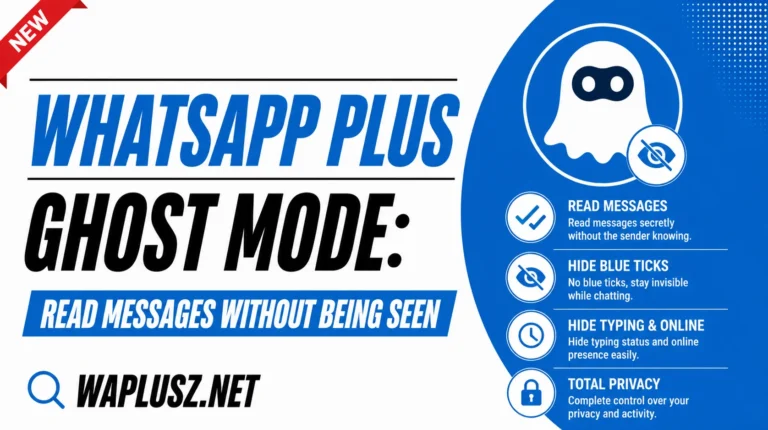
Read receipts in the official app are all or nothing, and turning them off blinds you too. The mod separates them, so your ticks stay grey while theirs still turn blue.
The toggle is in the privacy menu. Some builds allow it per contact, which is worth checking.
Worth naming plainly: this is the toggle that most obviously takes something from the other person. The rest of the menu mostly hides you, and this one keeps a benefit while withdrawing it. Your call.
Hide Your Typing Indicator
The “typing…” label creates pressure people rarely name. Someone watches it start, stop, start again, and reads meaning into every pause. Turning it off lets you write, delete, and rewrite unobserved.
The recording indicator for voice notes is usually a separate toggle right beside it.
This is the best setting in the menu and the least discussed. It costs the other person nothing and removes a real source of low-grade stress from both sides.
Hide Your Online Status
Separate from last seen, and the one people consistently miss. Someone can’t see when you were last active but can still watch “online” appear at the top of your chat in real time.
Both toggles or neither. A hidden last seen with a visible online status is a privacy setup with a hole straight through it.
Per-Contact Privacy Rules
This is the feature with no official equivalent at all. Rather than one setting for everyone, you apply different rules to individual chats.
Your blue ticks stay on for your partner and off for your boss. Your typing shows to family and not to a group. Your last seen is visible to three people and nobody else.
Set it inside each chat, usually under the contact name or the three-dot menu, rather than in the main settings. For anyone mixing work and personal life on one number, this alone is worth more than the rest of the menu.
The Full Privacy Menu
| Setting | What It Hides | Per-contact? |
|---|---|---|
| Hide last seen | Your activity timestamp | On some builds |
| Freeze last seen | Same, but shows a fixed time | Usually global |
| Hide online status | Real-time presence | On some builds |
| Hide blue ticks | That you read a message | Yes |
| Hide second tick | Delivery confirmation | Rarely supported |
| Hide typing | That you’re composing | Yes |
| Hide recording | That you’re on a voice note | Yes |
| Silent status viewing | Your name from viewer lists | Global |
| Anti-delete | Nothing, it reveals | Global |
| Hide media from gallery | Received files from your camera roll | Per chat |
| Chat lock | Conversations from people holding your phone | Per chat |
| Hide notification previews | Message text on your lock screen | Global |
What the Second Tick Can’t Do
Worth setting expectations. The delivered tick isn’t a privacy setting, it’s the protocol confirming a message arrived at your device. Almost no build can suppress it and the ones claiming to usually break message delivery instead.
So the other person always knows their message reached you. They just don’t know what you did next. That’s the ceiling on all of this.
The Setting That Makes the Rest Work
Notification previews. Every toggle above is undone in one stroke if your message text appears on your lock screen for anyone at the table to read.
Fix it in two places, since neither covers the other. Set the app’s notifications to hide content in your phone’s settings, then turn off previews inside the app’s own notification section.
People set up ten privacy toggles and skip this one constantly. It’s the most common gap in an otherwise careful setup.
What None of This Hides
Being precise here, since the marketing gets vague on purpose.
Every setting above controls what other WhatsApp users see about you. That’s real, useful, and it’s the boundary.
None of it hides anything from the app itself, which reads every message in plain text by design and is an unverified build nobody can inspect. You’re private from your contacts, not from the software.
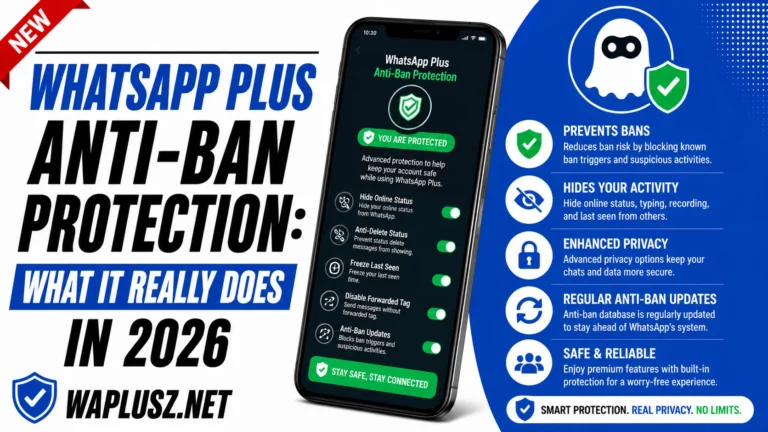
None of it affects ban risk either. Detection keys on the modified client, not on your visibility settings. Ghost mode doesn’t make you invisible to WhatsApp. Both points are covered fully on WAPLUSOFICIAL.NET.
Common Problems
- Settings Reset After Updates
- Manual installs wipe preferences regularly. Screenshot your setup once so restoring takes a minute rather than an evening.
- Blue Ticks Still Turning Blue in Groups
- Some builds handle groups separately. Check for a group-specific toggle.
- Per-Contact Rules Won’t Apply
- They’re set inside each chat, not in the main menu. Setting them globally does nothing for individual conversations.
- Frozen Last Seen Shows the Wrong Time
- Reset it in the privacy menu and pick a more plausible moment.
- Online Status Still Visible
- That’s a separate toggle from last seen. Turn both off.
Practical Tips
- Set everything in one sitting, because a half-configured setup is the one that catches you out.
- Start with notification previews, since it’s the one that makes the rest mean anything.
- Freeze rather than hide your last seen, as it’s quieter.
- Use per-contact rules if work and personal share a number.
- Turn off both last seen and online status.
- Screenshot your configuration for after the next update.
- Keep sensitive chats on official WhatsApp, where the encryption is verified.
Final Thought
The privacy menu is the strongest part of WhatsApp Plus alongside themes, and the per-contact rules are genuinely something the official app has no answer to. Ten minutes of setup gives you control over your visibility that’s hard to get any other way.
Hold both halves of it. These toggles are excellent at hiding you from other people and do nothing about the app itself or the ban risk underneath. Set them up knowing exactly what you’ve got.