WhatsApp Plus Themes How to Download & Apply in 2026
One of the most visible and enjoyable parts of WhatsApp Plus is that it doesn’t have to look like WhatsApp. The official app gives you a wallpaper and a dark mode, and that’s the extent of it. Everyone’s chats look identical because everyone’s chats are identical.
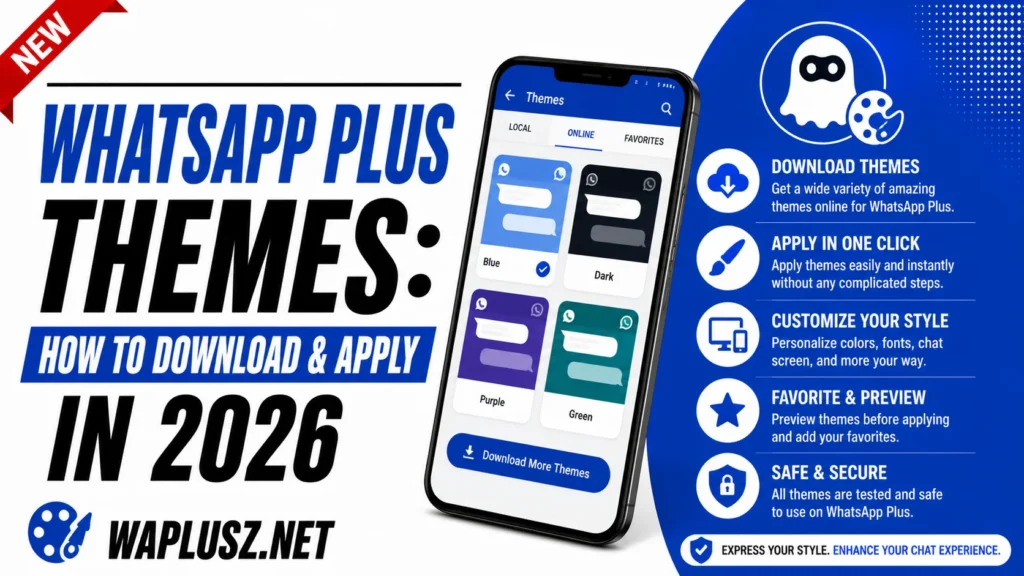
Themes are the reason a lot of people install the mod in the first place. This guide covers where to find them, how to apply them, how to make your own, and what to watch for.
What Themes Actually Change
A theme in WhatsApp Plus is a package that rewrites the app’s appearance. It isn’t just a background image, it changes colours, bubble shapes, icons, fonts, tick styles, and the layout of the interface itself.
Applied properly, the app becomes unrecognisable. Two people running different themes on the same build are looking at what may as well be two different apps.
That’s the appeal, and it’s the one area where the mod’s advantage over the official app hasn’t narrowed at all.
What a Theme Controls
| Element | Customisable? |
|---|---|
| Chat bubble colour and shape | Yes |
| Background and wallpaper | Yes |
| Header and toolbar colour | Yes |
| Font style and size | Yes |
| Tick style and colour | Yes |
| App icon | Yes |
| Notification bar colour | Yes |
| Menu layout and icons | Yes |
| Status bar appearance | Yes |
| Call screen design | On most builds |
| Emoji style | On some builds |
| Splash screen | Yes |
Where Themes Come From
Themes are files, usually with a .xml extension, made by the community rather than the developer. Thousands exist, and most builds include a built-in theme store that pulls from a shared library.
The store is the easiest route. Open it, browse, tap, done. No files to manage and nothing to download manually.
Themes also circulate as standalone files shared in groups and on forums. Those need manual installation, which is a few extra steps.
How to Apply a Theme from the Store
- Open WhatsApp Plus and tap the three-dot menu.
- Go to the mod’s settings, then find the themes entry.
- Open the theme store or download section.
- Browse the library, which usually sorts by popular, new, and category.
- Tap a theme to see a preview of how it looks.
- Tap download and wait for it to save.
- Tap apply and confirm when prompted.
- Let the app restart, since themes need a reload to take effect.
The restart is automatic on most builds. If the theme looks half-applied, force close the app and reopen it.
How to Apply a Downloaded Theme File
- Save the theme file to your phone, usually a
.xml. - Move it to the themes folder, typically inside the app’s directory in your storage.
- Open the themes menu in the app’s settings.
- Look for a load or import option, which scans that folder.
- Select your theme from the list that appears.
- Apply and restart.
If the app doesn’t see the file, it’s in the wrong folder. Check the exact path in your build’s themes menu, since it differs between versions.
Making Your Own Theme
Most builds include a DIY editor, which is more capable than people expect. You’re not picking from presets, you’re setting individual values.
- Start from an existing theme rather than a blank slate, since editing is far easier than building.
- Change one element at a time and check it before moving on.
- Set your primary colour first, because everything else keys off it.
- Check both light and dark if your build supports switching.
- Test readability on a real conversation, not just the preview.
- Export when you’re happy, which saves it as a file you can back up or share.
The export step matters. Themes reset on updates, and an exported file means reapplying takes ten seconds instead of an hour.
Choosing a Theme That Actually Works
Most themes look good in a preview and bad in daily use. The difference is usually readability, which nobody checks until they’ve been squinting for three days.
- Contrast matters more than colour: A gorgeous theme with grey text on a grey bubble is unusable.
- Check the timestamps: These are small and often the first thing a theme makes illegible.
- Check the ticks: Some themes style them into invisibility.
- Look at a long chat, since previews always show three tidy messages.
- Check it outdoors: Low-contrast themes vanish in daylight.
- Avoid heavy animated themes if your phone is older, because they cost real performance.
Themes and Performance
Heavy themes cost battery and memory. Animated backgrounds, custom fonts, and elaborate icon sets all add load, and on older phones the difference is noticeable.
If the app feels sluggish after a theme change, that’s usually the cause rather than a coincidence. Switch to something lighter and see if it lifts.
The default look is always the fastest. That’s the trade.
Common Problems and Fixes
- The Theme Won’t Apply
- It downloads but nothing changes. Force close the app fully from your recent apps list and reopen. If it still fails, the theme may be built for a different version.
- The App Looks Broken After Applying
- Elements overlap or text sits in the wrong place. The theme was made for another build. Revert to default and try a different one.
- Themes Disappeared After an Update
- Manual updates wipe theme settings regularly. This is why exporting matters. Reapply from your saved file rather than hunting through the store again.
- The Theme Store Won’t Load
- Usually a connection issue, sometimes the theme server being down. Try later, or install a theme file manually in the meantime.
- Text Is Unreadable
- The theme has poor contrast. Some builds let you override font colour separately, which can rescue an otherwise good theme.
- Custom Fonts Don’t Show
- Font support varies by build and by Android version. Not every theme’s fonts render on every phone.
Where to Get Theme Files Safely
Themes are .xml files, not apps, so they can’t install anything or request permissions. That makes them much lower risk than the APK itself.
The built-in store is the simplest option and the safest, since it’s curated by whoever maintains your build. Community groups are the other main source.
One thing worth knowing: a theme can’t harm your phone, and a file claiming to be a theme but arriving as an .apk is not a theme. Check the extension before you open anything.
Practical Tips
- Export your theme once you like it, since updates reset everything.
- Screenshot your settings alongside it for a fast restore.
- Keep two or three saved so you can switch without browsing.
- Use lighter themes on older phones, because heavy ones cost real performance.
- Test readability in a real chat before committing.
- Check the extension on any file you’re sent.
- Reapply after every update, and expect to.
Is It the Best Feature?
Probably, yes. Themes are the one area where WhatsApp Plus offers something the official app has no answer to and shows no sign of adding. Privacy toggles, dual accounts, and translation have all narrowed over the years. Appearance hasn’t.
If you want your messenger to look like yours, this is the feature that delivers, and the DIY editor makes it genuinely open-ended rather than a menu of presets.
The trade underneath is the same one that applies to the whole app, covered properly in the safety guides on WAPLUSOFICIAL.NET. Themes are the fun part. Worth knowing what they’re attached to.