Download WhatsApp Plus APK For Android Updated v18.80 Official
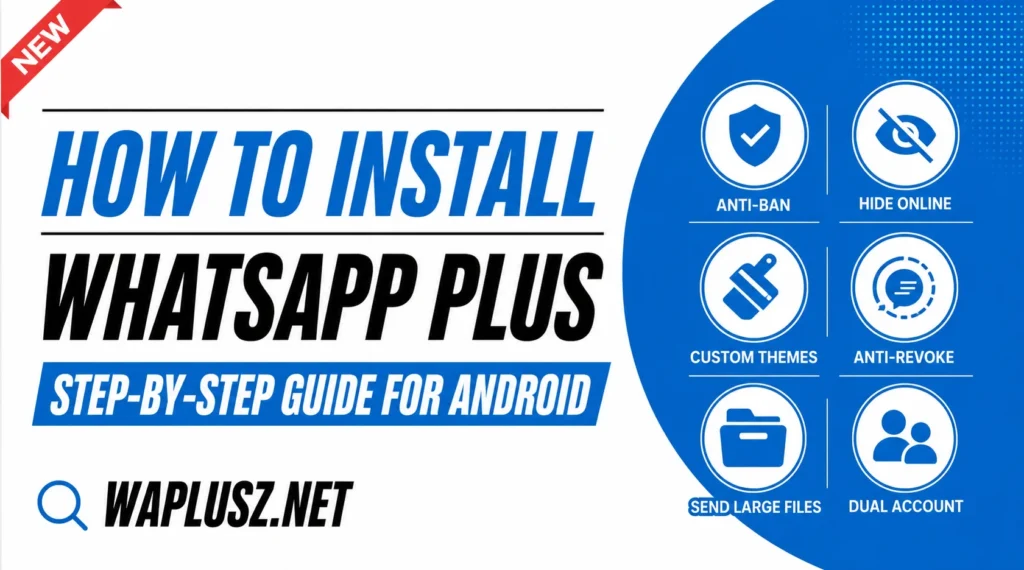
Installing WhatsApp Plus takes about five minutes and involves a few steps a normal app install doesn’t. Since it isn’t on the Play Store, you’re sideloading the APK manually, which means turning off a safety setting and putting it back afterwards.
Download Links:
This guide walks through the whole process in order, including the backup step people skip and regret. Read the section at the end before you start.
What You’ll Need
- An Android phone running 5.0 or higher.
- Around 300MB free, more if you’re restoring a large backup.
- A stable connection, since a partial APK won’t install.
- Your phone number, or better, a spare one.
- Ten minutes, which includes the backup.
WhatsApp Plus is Android only. There’s no iPhone version, and sites offering one are offering something else.
Step 1: Back Up Your Chats
Do this first. Everything else is reversible and this isn’t.
- Open official WhatsApp and go to Settings.
- Tap Chats, then Chat backup.
- Tap Back Up and wait for it to finish completely.
- Open your file manager and find the WhatsApp folder in internal storage.
- Copy the whole folder somewhere else on your phone.
- Copy it again to a computer or cloud if you can.
That copied folder is your entire message history. Uninstalling can clear the original on some Android versions, which people discover at exactly the wrong moment.
Step 2: Download the APK
- Go to the download page on WAPLUSOFICIAL.NET.
- Tap the download button and let the file save.
- Wait for it to complete, since a partial file fails at install.
- Check the file size matches what the page states.
If your browser warns you about the file type, that’s Android doing its job. It warns about every APK from outside the store, including safe ones and unsafe ones, since it can’t tell the difference.
Step 3: Allow Unknown Sources
Android blocks installs from outside the Play Store by default. You need to lift that block for one app, temporarily.
- Open Settings on your phone.
- Find Security or Privacy, depending on your Android version.
- Look for “Install unknown apps” or “Install from unknown sources”.
- Select your browser or file manager, whichever downloaded the file.
- Turn the permission on for that app only.
Newer Android versions ask per app rather than globally, which is better. Only enable the one you need.
Step 4: Install It
- Open your file manager and find the APK in Downloads.
- Tap the file.
- Tap Install when the prompt appears.
- Wait for it to finish, which takes a few moments.
- Don’t tap Open yet.
If the install fails, the usual causes are an incomplete download, unknown sources still off, or official WhatsApp still installed. That last one is the next step.
Step 5: Uninstall Official WhatsApp
Two clients can’t hold the same number. If you’re using your existing number, the official app has to go.
- Confirm your backup exists in the folder you copied. Check it now, not later.
- Uninstall official WhatsApp.
- Verify your copied folder is still there after uninstalling.
If you’re using a spare number instead, skip this. Both apps can coexist on different numbers, which is the setup I’d suggest anyway.
Step 6: Verify Your Number
- Open WhatsApp Plus.
- Accept the terms.
- Enter your phone number with the country code.
- Wait for the SMS code and enter it.
- Use the call option if the SMS doesn’t arrive after a couple of tries.
Don’t hammer the resend button. Repeated failed attempts can lock verification for hours.
Step 7: Restore Your Backup
- Watch for the restore prompt during setup.
- Tap Restore and wait, since large backups take several minutes.
- Check your oldest chats to confirm the history came across.
- Check photos load rather than showing as missing.
If no prompt appears, the app can’t find the backup. It only offers restore during first setup, so you’ll need to place the file correctly and reinstall.
Step 8: Turn Unknown Sources Back Off
The step every other guide skips.
- Go back to Settings, then Security or Privacy.
- Find “Install unknown apps”.
- Turn it off for the browser or file manager you enabled.
You’ve installed what you needed. Leaving the permission on means any future download can install itself, and that’s a genuinely bad state to leave a phone in.
Step 9: Set It Up
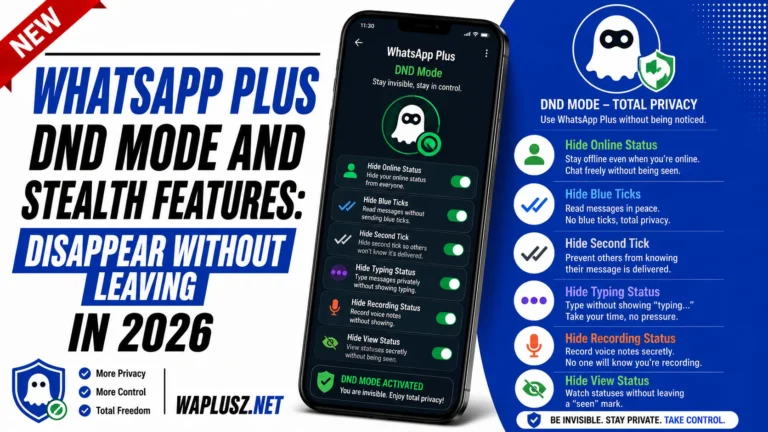
- Open the mod’s settings, which sit separately from the standard ones.
- Set your privacy toggles, since most are off by default.
- Turn off notification previews, which is the setting that makes the others work.
- Pick a theme.
- Set up the app lock if people borrow your phone.
- Turn on automatic backups, because you’re outside Google Drive now.
That last one matters more than anything else on the list. Your chats no longer back up to the cloud.
Common Install Problems
- App Not Installed
- Incomplete download, unknown sources off, or official WhatsApp still present. Re-download and check both.
- Parse Error
- The APK is corrupt or built for a different Android version. Download again and check your version meets the minimum.
- Verification Code Never Arrives
- Try the call option. Wait between attempts, since hammering it triggers a lockout.
- No Restore Prompt
- The backup isn’t where the app looks. It only offers restore at first setup, so reinstall after placing the file.
- App Crashes on First Open
- Usually a bad download. Uninstall, re-download, reinstall.
- Chats Restored but Media Is Missing
- The database restored and the Media folder didn’t. Copy that folder across separately.
Before You Install: What to Know
This is the part worth reading twice.
- The APK is unverified. Nobody can inspect the build for you, and repackaged messengers are a known malware route. That’s a real risk, not a formality.
- Check the permissions on install. A messenger has no business with your call logs or your location at startup. Anything unrelated to messaging is a reason to stop.
- Your account can be banned. Verifying your number is what exposes it to detection, and no build prevents this whatever it advertises.
- Use a spare number if you can. If WhatsApp carries your work or your family, testing a mod on that number is betting something you can’t afford.
- Your chats leave Google Drive. Local backups only from now on, which means a dead phone takes your history with it.
- Keep the copied backup folder. It’s your only route back.
The Setup I’d Actually Suggest
Put the mod on a spare number and keep your main number on official WhatsApp. Most phones support dual apps natively in the settings, so both run side by side.
You get the themes, ghost mode, and everything else. Your important number keeps verified encryption and no ban risk.
It costs a cheap SIM, and it turns a ban from a disaster into a shrug. The safety and ban guides on WAPLUSOFICIAL.NET explain why that’s the one measure that actually holds.