WhatsApp Plus Auto Reply Feature Save Time and Stay Responsive
Running a small business, managing a busy team, or simply having a life away from your phone all create the same problem. Messages arrive when you can’t answer, and the silence looks like you’re ignoring people. The WhatsApp Plus auto reply feature answers for you, and it’s one of the most practical tools in the mod.
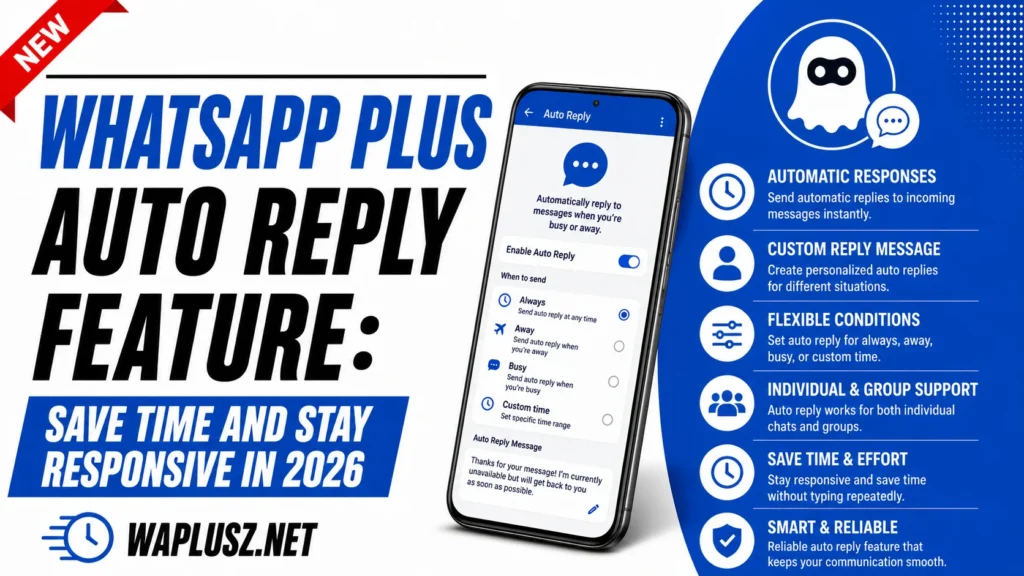
This guide covers how auto reply works, how to set it up, what to write in your replies, and where the feature falls short. It’s aimed at anyone who wants their messages handled while they’re busy elsewhere.
What Is Auto Reply in WhatsApp Plus?
Auto reply sends a pre-written message automatically whenever someone contacts you. You write the text once, set the rules, and the app handles every incoming message that matches. The sender gets an immediate response, so nobody is left staring at a delivered tick wondering if you saw it.
The official WhatsApp app has nothing like this on personal accounts, which is a big part of why people install the mod. WhatsApp Business offers away messages and greeting messages, though only inside a separate business app with its own setup.
In WhatsApp Plus, the feature sits in your normal account with no extra app needed. That convenience is the whole appeal.
Who Actually Benefits From It
Auto reply sounds like a business tool, and it is one, but the everyday uses are just as common. Anyone whose phone gets more messages than they can answer will find a use for it.
- Small business owners: Confirm you received an enquiry and give a realistic response time.
- Freelancers: Handle client messages while you’re deep in work without breaking focus.
- Anyone in meetings all day: Let people know you’ll reply after five without typing it forty times.
- Group admins: Answer the same repeated question automatically.
- Travellers: Explain a time zone gap so nobody thinks you’re ignoring them.
- People who just need a break: Set expectations honestly instead of going silent.
How to Set Up Auto Reply
The setup takes a few minutes. Menu names shift slightly between builds, though the path is close to identical on all of them.
- Open WhatsApp Plus and tap the three-dot menu in the top corner.
- Go to the mod’s own settings, which sit separately from the standard WhatsApp settings.
- Find the auto reply entry, usually listed under tools or extras.
- Turn the feature on with the main toggle at the top.
- Write your reply message in the text field provided.
- Choose who it applies to, whether that’s everyone, specific contacts, or groups.
- Set the time window if you only want it active during certain hours.
- Set the reply delay, which controls how quickly the response fires.
- Save and test it by messaging yourself from another number.
That last step matters more than it sounds. A typo in an auto reply goes out to everyone who contacts you, and you won’t see it until someone mentions it.
Auto Reply Settings Explained
| Setting | What It Does | Suggested Value |
|---|---|---|
| Reply message | The text sent automatically | Short, clear, with a real timeframe |
| Apply to | Which contacts trigger it | Everyone, or exclude close contacts |
| Time window | Hours the feature stays active | Outside your working hours |
| Reply delay | Wait time before it sends | 10 to 30 seconds, so it feels less robotic |
| Reply frequency | How often the same person gets it | Once per conversation, not per message |
| Group replies | Whether groups trigger it | Off, unless you want a lot of noise |
| Keyword triggers | Different replies for different words | Useful for business FAQs |
The frequency setting is the one people get wrong. Set to reply every message, it fires four times when someone sends four lines in a row, which reads as broken rather than helpful.
What to Write in Your Auto Reply
A good auto reply does three things: confirms receipt, sets a timeframe, and offers a next step. Anything longer gets skimmed and anything shorter feels dismissive. Keep it to two or three lines.
For Business Use
Thanks for your message. I’ve received it and will reply within a few hours during working days. For anything urgent, please call the number in my profile.
For Personal Use
I’m away from my phone right now and will get back to you this evening. Thanks for your patience.
For After Hours
Thanks for getting in touch. Messages sent after 6pm are answered the next working morning.
What to Avoid
- Don’t promise a timeframe you won’t hit, since a missed auto reply promise is worse than no reply at all.
- Don’t write a paragraph, because nobody reads a wall of text from an automated message.
- Don’t sound like a machine, as a friendly line lands better than a corporate notice.
- Don’t include personal details, because auto replies go to anyone who messages, including strangers.
- Don’t forget to turn it off, which is the single most common mistake with this feature.
Keyword-Based Replies
Some builds of WhatsApp Plus support keyword triggers, which send different responses depending on what the sender wrote. It turns a simple away message into a basic answering system.
Set a trigger for the word “price” that sends your rate card. Set one for “hours” that sends your opening times. Anything that doesn’t match gets your general reply.
This works well for small businesses handling the same three questions all day. It works poorly for anything nuanced, since a keyword match has no understanding of context.
Scheduled Messages: The Companion Feature
Auto reply handles incoming messages, and the message scheduler handles outgoing ones. The two together cover most of what people install the mod for. Write a message now, pick a time, and it sends without you touching the phone.
The scheduler sits in the same settings area on most builds. Common uses are birthday wishes, reminders to a team, and messages timed for someone else’s time zone.
Both features share one limitation worth knowing: they need the app running in the background. Aggressive battery saving on your phone can stop either from firing.
Common Problems and Fixes
Auto Reply Doesn’t Fire
The feature is on but nothing sends. This is almost always battery optimisation killing the app in the background. Go to your phone’s battery settings, find WhatsApp Plus, and set it to unrestricted.
It Replies Too Many Times
The same contact gets your away message four times in a row. Change the reply frequency setting from every message to once per conversation. Some builds label this as a cooldown period instead.
It Replies to Groups
Your away message appears in every group chat you’re in, which is a fast way to annoy people. Turn off group replies in the auto reply settings. This should be off by default and often isn’t.
It Keeps Running After You Return
You forgot to switch it off and clients think you’re still away. Set a time window during setup rather than relying on memory. Most builds let you define active hours so the feature manages itself.
The Message Sends Instantly
An instant reply makes it obvious the message is automated. Add a delay of 15 to 30 seconds in the settings. It’s a small touch that makes the reply feel less mechanical.
Auto Reply vs WhatsApp Business
| WhatsApp Plus | WhatsApp Business | |
|---|---|---|
| Away messages | Yes | Yes |
| Greeting messages | On some builds | Yes |
| Keyword replies | On some builds | Quick replies, manual |
| Separate app needed | No | Yes |
| Runs on personal account | Yes | No, business profile |
| Official support | No | Yes |
| Play Store updates | No | Yes |
| Account ban risk | Yes | No |
| Verified encryption | No | Yes |
This table is the honest version of the comparison. WhatsApp Plus wins on convenience, since everything runs in one app on your normal number. WhatsApp Business wins on everything else, and it’s free.
If auto reply is the main reason you’re considering a mod, the Business app deserves a look first. It does the same job without putting your number at risk.
Practical Tips
- Set a time window rather than toggling the feature manually, because you will forget.
- Exclude your close contacts, since family don’t need an away message from you.
- Test it from another number before trusting it with real messages.
- Keep the text short and give a timeframe you can actually meet.
- Turn off group replies unless you have a specific reason to keep them on.
- Whitelist the app in battery settings, or the feature silently stops working.
- Review the message monthly, because an away message referencing last summer looks careless.
Is Auto Reply Worth It?
For the right person, it’s genuinely useful. If your phone gets steady messages you can’t answer immediately, WhatsApp Plus auto reply removes a daily source of friction, and the setup cost is a few minutes once. Small business owners get the most from it.
The catch is the same one that applies to every feature in the mod. You’re running an unofficial app on your main number, and the ban risk sits underneath everything regardless of which feature you’re using. Guides covering that question in full are on WAPLUSOFICIAL.NET.
Worth weighing honestly: if auto reply is the only feature pulling you in, WhatsApp Business gives you the same thing officially. If you want it alongside themes, ghost mode, and everything else, then the mod makes more sense, provided you understand the trade.