WhatsApp Plus Privacy Hacks 10 Smart Tricks for 2026
Privacy is no longer a feature people ask for, it’s a baseline they expect. Most of us want to read a message without announcing it, check a status without leaving a footprint, and go quiet without explaining ourselves. WhatsApp Plus was built around exactly that, and its privacy menu is the reason most people install it.
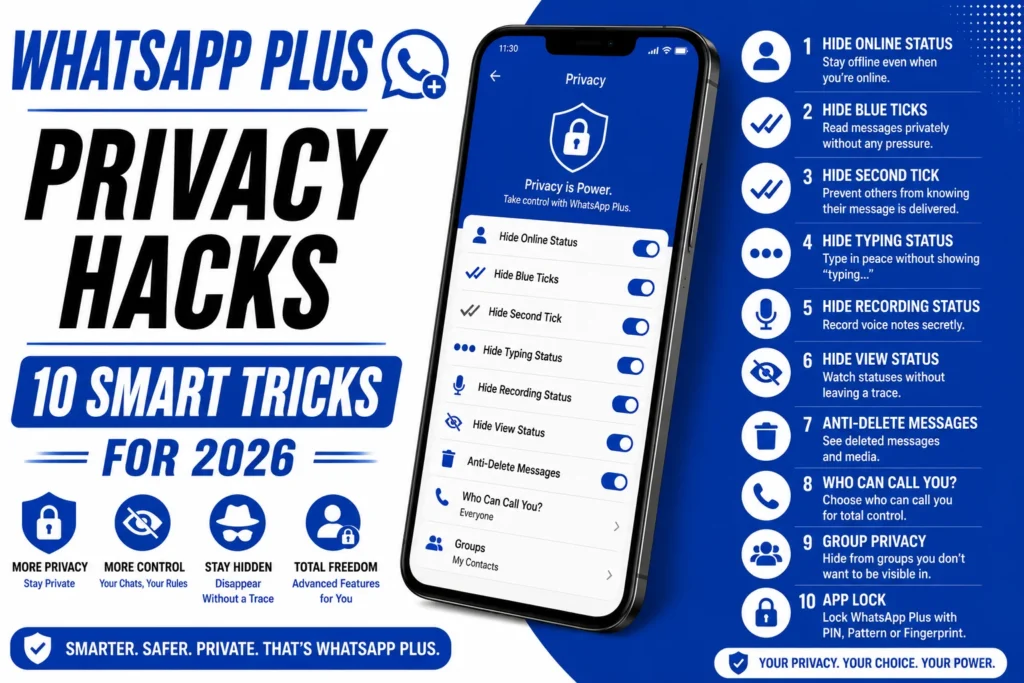
This guide covers ten settings worth turning on, how each one works, and what they actually hide. It also covers the one thing none of them hide, which is worth knowing before you rely on any of this.
Why the Privacy Menu Is the Main Draw
The official app gives you a handful of blunt switches. You can hide your last seen from everyone or nobody, and turning off read receipts means losing them for yourself too. WhatsApp Plus breaks those switches into pieces and lets you aim each one.
That granularity is the whole appeal. You can hide your typing status from one person and not another, freeze your last seen while still using the app, and read messages without a single tick turning blue.
Here are the ten worth setting up first.
1. Freeze Your Last Seen
Freezing your last seen locks the timestamp at whatever moment you choose. Others see that fixed time forever while you carry on using the app normally. It’s different from hiding it, since a hidden last seen tells people you’re hiding, and a frozen one tells them nothing at all.
Turn it on under privacy in the mod’s settings. The trade in the official app is that hiding yours hides theirs from you, and this feature sidesteps that entirely.
Most people set it and never touch it again. It’s the single most-used privacy toggle in the app.
2. Hide Blue Ticks While Still Seeing Theirs
Read receipts in official WhatsApp are all or nothing. Turn them off and you lose the ability to see whether anyone read yours. WhatsApp Plus removes that symmetry, so your ticks stay grey while theirs still turn blue.
The setting sits in the privacy menu, usually as a simple toggle. Some builds let you apply it per contact, which is worth checking on yours.
Worth naming honestly: this is the feature that most obviously takes something from the other person. It’s your call whether that sits right.
3. Hide Your Typing Indicator
The “typing…” label is a small thing that causes real pressure. People watch it start and stop, and read meaning into the pause. Turning it off means you can write, delete, rewrite, and send with nobody watching the process.
The recording indicator for voice notes is usually a separate toggle in the same menu. Turn both on together, since half the feature is half a solution.
This one is quietly the best of the ten. It costs the other person nothing and removes a genuine source of low-level stress.
4. Turn On Ghost Mode
Ghost mode bundles most of the above into one switch. On builds that support it, a single tap hides your online status, last seen, typing indicator, and blue ticks all at once. Some builds put the icon right on the home screen for quick access.
It’s the fastest way to disappear without digging through menus. Toggle it on when you want to read without being seen, and off when you don’t.
Check what your build actually includes under the label, since ghost mode covers different things on different versions.
5. Hide Your Online Status
Last seen and online status are two separate things, and most people only hide the first. Someone can’t see when you were last active but can still watch the word “online” appear at the top of your chat in real time.
WhatsApp Plus lets you hide both. The online toggle is usually right below the last seen one.
Turning off one without the other is the most common gap in a privacy setup. Check both.
6. Set Privacy Rules Per Contact
This is the feature the official app has nothing close to. Instead of one setting for everyone, you can apply different rules to individual chats. Your blue ticks stay on for your partner and off for your boss.
You’ll find it inside each chat rather than in the main settings, usually under the contact name or the three-dot menu. Set it once per conversation.
For anyone juggling work and personal life on one number, this is worth more than the other nine combined.
7. Hide Media from Your Gallery
Every photo and video you receive normally lands in your phone’s gallery, mixed in with your own pictures. Anyone scrolling your camera roll sees everything anyone ever sent you. The media hiding option keeps received files inside the app and out of the gallery.
The setting is usually in the mod’s chat or media section. It works per chat on some builds and globally on others.
Simple, and it closes a leak most people don’t think about until it’s a problem.
8. Lock Individual Chats
Chat lock puts a PIN or fingerprint on specific conversations while the rest of the app opens normally. It protects against the everyday case of someone borrowing your phone rather than anything more elaborate.
Open the chat, tap the contact name, and look for the lock option. Repeat for each conversation you want covered.
Pair it with hidden notification previews, because a locked chat that still shows message text on your lock screen isn’t locked at all.
9. View Statuses Without Being Seen
The status viewer lets you check someone’s status without your name appearing in their viewer list. Nothing registers on their end. The downloader alongside it saves the status to your phone in one tap.
Both sit in the mod’s privacy or status settings. They’re separate toggles on most builds.
This one is worth a moment’s thought. The viewer list is how people see who’s paying attention, and removing yourself from it is a quiet asymmetry.
10. Hide Notification Previews
This is the setting that makes the other nine mean something. All the privacy toggles in the world do nothing if your message text appears on your lock screen for anyone at the table to read.
Fix it in two places. Set WhatsApp Plus notifications to hide content in your phone’s settings, then turn off previews inside the app’s own notification section.
Neither one covers the other, which is why people who set only one still get caught out.
Quick Reference Table
| Trick | Where It Lives | What It Hides |
|---|---|---|
| Freeze last seen | Privacy settings | Your activity timestamp |
| Hide blue ticks | Privacy settings | That you read a message |
| Hide typing indicator | Privacy settings | That you’re composing |
| Ghost mode | Privacy or home screen | Several things at once |
| Hide online status | Privacy settings | Real-time presence |
| Per-contact rules | Inside each chat | Anything, selectively |
| Hide media from gallery | Chat or media settings | Received files from your camera roll |
| Lock individual chats | Inside each chat | Conversations from people holding your phone |
| Silent status viewing | Status settings | Your name from viewer lists |
| Hide notification previews | Phone and app settings | Message text on your lock screen |
What None of These Hide
Every setting above controls what other WhatsApp users see. That’s a real thing and worth having. But it’s worth being clear about the boundary, because download pages often blur it deliberately.
None of these settings hide anything from the app itself. WhatsApp Plus is an unofficial build with full access to every message passing through it, and no toggle in the privacy menu changes that. You’re hiding from your contacts, not from the software.
They also do nothing about account bans. Ghost mode doesn’t make you invisible to WhatsApp’s detection, because the trigger is the modified client itself, not your activity.
Both points are covered in full in the safety and ban guides on WAPLUSOFICIAL.NET. Neither takes anything away from the ten tricks above, they just define what those tricks are for.
Common Problems
Settings Reset After an Update
Manual installs wipe preferences regularly. Check the privacy menu after every update and re-enable what you need. Screenshot your setup once so you can restore it quickly.
Ghost Mode Doesn’t Hide Everything
The label covers different features on different builds. Check what yours actually includes and set the individual toggles for anything it misses.
Blue Ticks Still Turning Blue
Group chats sometimes ignore the setting on certain builds. Check whether your version has a separate group toggle.
Per-Contact Rules Not Applying
These are set inside each chat, not globally. Setting them in the main menu does nothing for individual conversations.
Practical Tips
- Set all ten in one sitting, since a half-configured privacy setup is the one that catches you out.
- Start with notification previews, because it’s the one that makes the rest work.
- Use per-contact rules if you mix work and personal on one number.
- Recheck after every update and keep a screenshot of your settings.
- Don’t confuse hiding from people with being private, as those are different things.
- Keep sensitive conversations on official WhatsApp, which has verified encryption behind it.
Final Thought
The privacy menu in WhatsApp Plus is the best thing about it. Ten minutes of setup gives you control the official app doesn’t offer, and for most people the per-contact rules and the frozen last seen alone justify the interest.
Just hold the two halves together. These toggles are excellent at hiding you from other users and do nothing about the app itself or the ban risk that comes with it. Set them up knowing exactly what you’ve bought.