WhatsApp Plus Built-in App Lock Secure Your Chats Like a Pro
Handing your phone to a friend, a family member, or a coworker is a small moment that carries real risk. One tap on the wrong icon and your private conversations are open on the screen. The WhatsApp Plus app lock exists for exactly that moment, and it’s one of the few features in the mod that solves a problem almost everyone has.
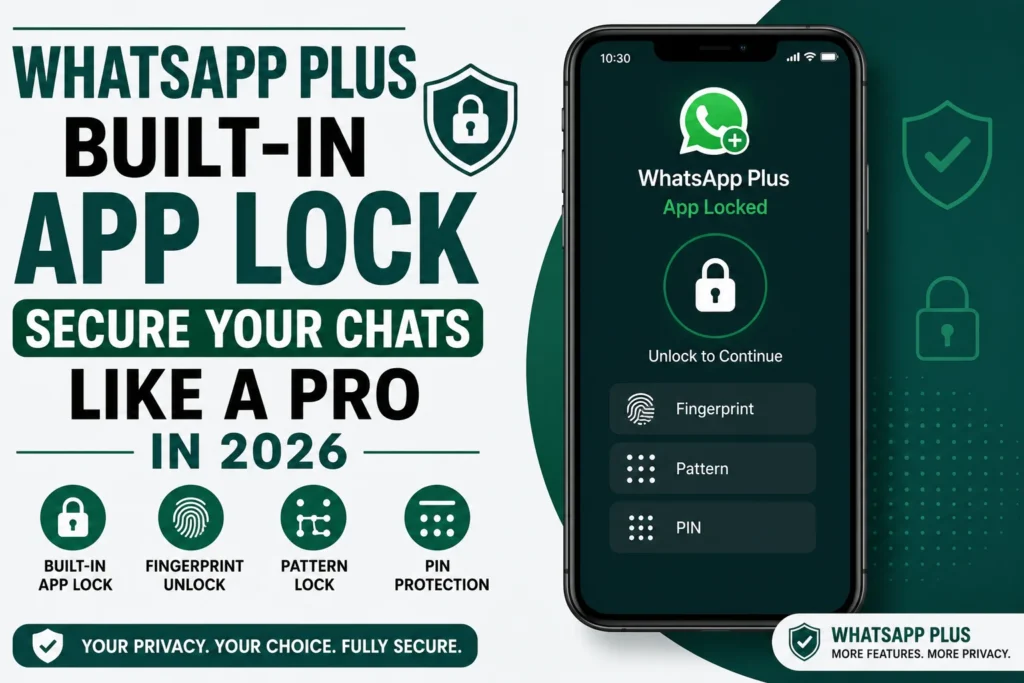
This guide covers what the lock does, how to set it up, where each option fits, and what it protects you from. It also covers what it doesn’t protect you from, because that part matters just as much.
What Is the WhatsApp Plus App Lock?
The WhatsApp Plus app lock is a barrier built directly into the app that asks for a PIN, pattern, password, or fingerprint before anything opens. It sits between whoever is holding your phone and your messages, and it works even if your phone is already unlocked. The official app has nothing quite like it at the whole-app level, which is why so many people go looking for it.
There are two separate layers here, and they’re worth keeping straight. App lock covers the entire app, so nothing at all opens without your credential. Chat lock covers individual conversations, so the app opens normally while specific chats stay closed.
Most people use one or the other, though nothing stops you from running both. The right choice depends on who has access to your phone and how often.
App Lock vs Chat Lock
| Options | App Lock | Chat Lock |
|---|---|---|
| What it covers | The entire app | Selected conversations only |
| When you’re asked | Every time you open the app | Only when opening a locked chat |
| Best for | Shared or borrowed phones | A few private chats among many |
| Visible to others | The app won’t open at all | The chat appears but won’t open |
| Convenience cost | Higher, since it’s every launch | Lower, since normal chats stay open |
| Notification control | Can hide previews entirely | Can hide previews per chat |
Why the App Lock Matters More Than People Think
Your phone’s screen lock protects you from strangers, not from the people around you. Family members know your passcode, kids borrow your phone for games, and coworkers glance over during a handoff. Once the phone is open, every app on it is open too, and that’s the gap this feature fills.
There’s also the everyday case that has nothing to do with suspicion. You pass someone your phone to show a photo, and a message preview slides down across the top. The WhatsApp Plus lock, combined with hidden previews, keeps that from becoming an awkward moment.
For anyone running a business number, the case is stronger still. Client conversations, quotes, and payment details sit in those chats, and a lock is the cheapest protection available for them.
Lock Types Available in WhatsApp Plus
WhatsApp Plus supports several credential types, and each one trades convenience against strength. The right pick depends on how often you open the app and who’s likely to be nearby when you do.
- Fingerprint: The fastest option and the hardest for someone else to fake. It requires a phone with a working fingerprint sensor, and it’s the default choice for most users.
- PIN: A short numeric code, usually four to six digits. Quick to type and easy to remember, though also easy for someone to watch you enter.
- Pattern: A swipe across a grid of dots. Faster than a PIN for many people, but it leaves smudge trails on the screen that can be read.
- Password: A full alphanumeric string and the strongest of the four. Slower to enter each time, which puts most people off using it daily.
- Face unlock: Available on some builds and some devices. Convenience is excellent, though reliability varies with lighting and camera quality.
Which One Should You Pick?
If your phone has a fingerprint sensor, use it. It’s fast enough that you won’t be tempted to switch the lock off, and that matters more than raw strength, since the lock you actually keep enabled is the one that protects you.
If there’s no sensor, a six-digit PIN is the practical middle ground. Avoid patterns if the people you’re protecting against are ever physically near your screen.
How to Enable App Lock in WhatsApp Plus
Setting the lock up takes about a minute. The exact menu names shift slightly between builds, but the path is close to identical across all of them.
- Open WhatsApp Plus and tap the three-dot menu in the top corner.
- Go to the mod’s own settings, which sit separately from the standard WhatsApp settings on most builds.
- Find Privacy and Security, then look for the lock or app lock entry.
- Choose your lock type from fingerprint, PIN, pattern, or password.
- Set your credential and confirm it a second time when prompted.
- Add a recovery question if the build offers one, since it’s your way back in if you forget.
- Set the lock timing, which controls whether you’re asked immediately or after a delay.
- Test it by closing the app fully and reopening it.
That last step is the one people skip and regret. Close the app from your recent apps list rather than just pressing home, since a lock that only triggers on a cold start isn’t doing much.
How to Lock Individual Chats
Chat lock works differently and is set per conversation rather than globally. It suits anyone who wants the app to open normally while a handful of chats stay sealed.
- Open the chat you want to protect.
- Tap the contact name or the three-dot menu at the top of the conversation.
- Select the lock option, which may be listed as chat lock or privacy.
- Confirm with your credential to apply it.
- Repeat for each chat you want covered, since the setting doesn’t apply in bulk on most builds.
Locked chats behave differently depending on your build. Some hide the conversation from the main list entirely, while others leave it visible but unopenable. Check which one yours does before assuming a chat is hidden from view.
Notification Privacy: The Part People Forget
A lock on the app does nothing if the message text still appears on your lock screen. This is the most common mistake, and it undoes the whole feature in one stroke. Anyone glancing at your phone on a table reads the message without ever opening anything.
Fix it in two places. In your phone’s settings, set WhatsApp Plus notifications to hide content on the lock screen. Then in the app’s own settings, turn off message previews in the notification section.
The result is a notification that tells you something arrived without saying what or from whom. It’s a small adjustment that closes the biggest hole in an otherwise solid feature.
What the App Lock Actually Protects
Being precise here saves you from a false sense of security. The lock is genuinely useful within its scope, and the scope is narrower than most download pages suggest.
| Threat | Does the app lock help? |
|---|---|
| Someone borrowing your unlocked phone | Yes — this is exactly what it’s for |
| A family member checking your chats | Yes |
| Someone reading notifications on your table | Yes, with previews disabled |
| A coworker glancing at your screen | Yes |
| Someone stealing your phone | Partly – it’s a second barrier after the screen lock |
| The app itself accessing your messages | No |
| WhatsApp detecting a modified client | No |
| Malware bundled in a tampered build | No |
The pattern in that table is worth reading carefully. The app lock defends against people, and it does that job well. It does nothing about the app itself, which is a separate question covered elsewhere on WAPLUSOFICIAL.NET.
What It Doesn’t Protect Against
The lock guards the door, not the house. WhatsApp Plus is an unofficial build, which means the app has full access to every message that passes through it regardless of what credential sits on the front. A PIN keeps your sister out and has no bearing on what the software does with your data.
It also has no effect on account bans. Locking the app doesn’t hide it from WhatsApp’s detection, since the ban trigger is the modified client itself, not anything you can toggle.
Treat the lock as what it is: a good answer to the borrowed-phone problem, and not an answer to the bigger questions about running a mod. Both things can be true at once.
Common Problems and Fixes
The Lock Doesn’t Trigger
The app opens straight to your chats without asking for anything. This usually means the lock timing is set to a delay, so a quick reopen skips the prompt. Set it to ask immediately and test again with a full close.
Fingerprint Not Recognised
The sensor works elsewhere but fails inside the app. Re-register the fingerprint in your phone’s settings first, then re-enable it in the app. If it still fails, your build may not support the sensor on your device model.
Locked Out After Forgetting the PIN
Use the recovery question if you set one up, which is the whole reason it’s offered. Without it, your only route is reinstalling the app and restoring from a backup. This is why a current backup matters before you enable any lock.
The Lock Disappears After an Update
Manual updates sometimes reset the mod’s settings. Check the privacy menu after every update and re-enable the lock if it’s gone. It’s worth adding to your routine, since updates are frequent with any mod.
Chats Still Show in Notifications
The app lock and notification previews are separate settings. Turn previews off in both your phone’s notification settings and the app’s own. Neither one covers the other.
Practical Tips for Getting the Most Out of It
- Enable the fingerprint option if your phone has a sensor, since a fast lock is a lock you’ll keep on.
- Turn off notification previews at the same time you enable the lock, because one without the other is half a solution.
- Use a different credential from your phone’s screen lock, which adds a real second barrier rather than a duplicate one.
- Set a recovery question during setup, since being locked out of your own chats is a genuinely annoying way to lose an afternoon.
- Back up before enabling anything, so a forgotten PIN costs you minutes instead of your message history.
- Recheck the setting after each update, because manual installs reset preferences more often than you’d expect.
- Keep truly sensitive chats on official WhatsApp, which has its own chat lock and verified encryption behind it.
Is the App Lock Worth It?
For the specific problem it solves, yes. The WhatsApp Plus app lock is fast, flexible, and covers a gap the official app only partly addresses, and the per-chat option gives you a level of control that’s genuinely handy. If people regularly hold your phone, this feature alone changes your daily experience.
Just be clear about what you’re getting. It’s a strong lock on an app that carries its own risks, and the lock doesn’t reduce those risks by any amount. Guides covering the ban question and the safety trade-offs in full are available on WAPLUSOFICIAL.NET.
Set it up properly, pair it with hidden previews, keep a backup, and it does exactly what it says. That’s more than most mod features can claim.