WhatsApp Plus Troubleshooting Guides Fix All Issues in 2026
Even good apps break, and mods break more than most. WhatsApp Plus sits on top of a service that changes without warning, gets updated by hand, and has no support desk to call when something stops working.
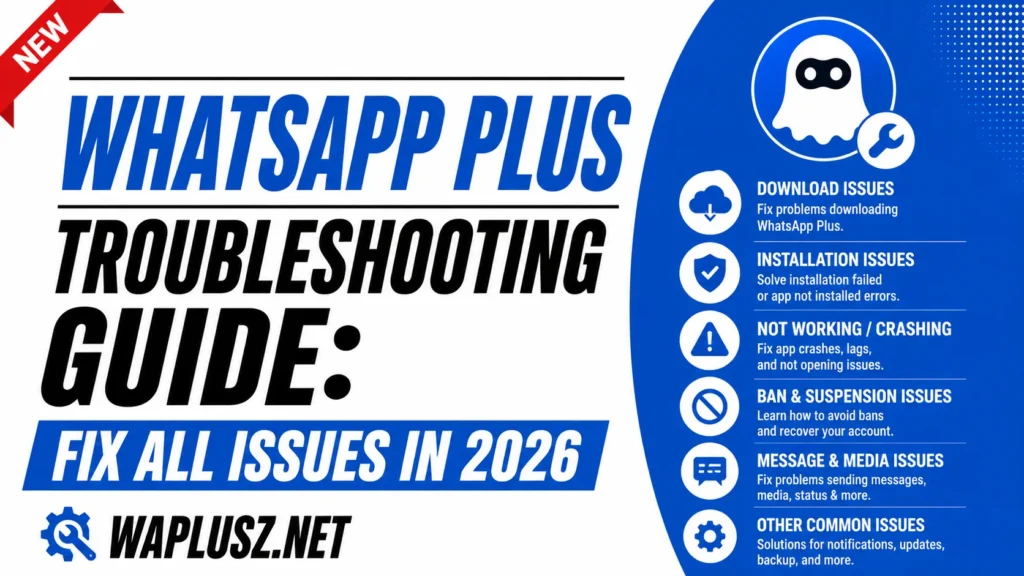
This guide covers the problems people actually hit, in order of how often they hit them, with fixes that work. Start with the section matching your symptom.
Before Anything Else
Two things solve a surprising share of problems, and both take a minute.
Restart your phone. Boring and it genuinely clears a good percentage of loading, notification, and connection faults.
Check whether you’ve updated recently. Updates reset settings, break themes, and occasionally break the app entirely. If something stopped working this week and you updated last week, that’s your answer.
Won’t Install
App Not Installed
The most common install failure. Usually one of three things.
- Incomplete download: The file didn’t finish. Delete and download again on a stable connection.
- Unknown sources off: Check Settings, Security or Privacy, and enable it for your browser.
- Official WhatsApp still present: Two clients can’t hold one number. Back up, then uninstall it.
- Parse Error
- The APK is corrupt or built for a different Android version. Re-download it, and check your phone meets the minimum version.
- Not Enough Storage
- Installs need headroom beyond the file size. Clear a gigabyte and try again.
Won’t Log In
Verification Code Never Arrives
The most reported problem with any mod.
- Wait the full countdown before requesting again.
- Use the call option instead, which works when SMS doesn’t.
- Check your signal, since SMS needs cell service rather than Wi-Fi.
- Confirm the country code is right.
- Stop after two failures, because hammering it triggers a lockout of several hours.
- Code Arrives but Is Rejected
- Usually an expired code. Request a fresh one and enter it immediately.
- Stuck on Connecting
- Your build may be too old, since WhatsApp blocks outdated clients. Update to the current build.
- Number Already Registered Elsewhere
- The number is active on another device or client. Log out there first.
- Banned During Verification
- If verification fails with a ban message, that’s an account issue rather than an install issue. The ban guide covers it.
App Won’t Open
- Force close and reopen: From the recent apps list, not just the home button.
- Restart your phone: Clears the majority of these.
- Clear the cache: Settings, Apps, then Storage, then Clear Cache. Don’t clear data, which wipes your chats.
- Check for an update: A build that worked yesterday and doesn’t today usually means WhatsApp changed something.
- Reinstall: Back up first, always.
Crashing or Lagging
| Cause | Fix |
|---|---|
| Cache buildup | Clear cache in your phone’s app settings |
| Heavy theme | Switch to a lighter one and see if it lifts |
| Low storage | Free up a couple of gigabytes |
| Old build | Update to current |
| Old phone | Lighter theme, fewer features enabled |
| Too many features on | Turn off what you don’t use |
Heavy themes are the underrated cause. Animated backgrounds and custom fonts cost real performance, and people rarely connect a slow app to a theme they applied three weeks ago.
Notifications Not Working
The single most common ongoing complaint, and it’s almost always battery optimisation.
- Open your phone’s battery settings.
- Find WhatsApp Plus in the app list.
- Set it to unrestricted or exclude it from optimisation.
- Check the app’s own notification settings are on.
- Check DND mode isn’t quietly enabled inside the app.
- Check your phone’s DND isn’t on.
- Re-enable notifications in Settings, Apps, then Notifications.
Aggressive power saving on some Android skins kills background apps regardless of settings. Unrestricted is the fix, and it costs you some battery.
Media Won’t Download
- Check auto-download settings allow media on your current connection type.
- Test your connection, since media needs a steadier signal than text.
- Check storage, because downloads fail silently when space runs out.
- Delete and re-request any single corrupted file.
- Check the date and time on your phone, as a wrong clock breaks downloads in odd ways.
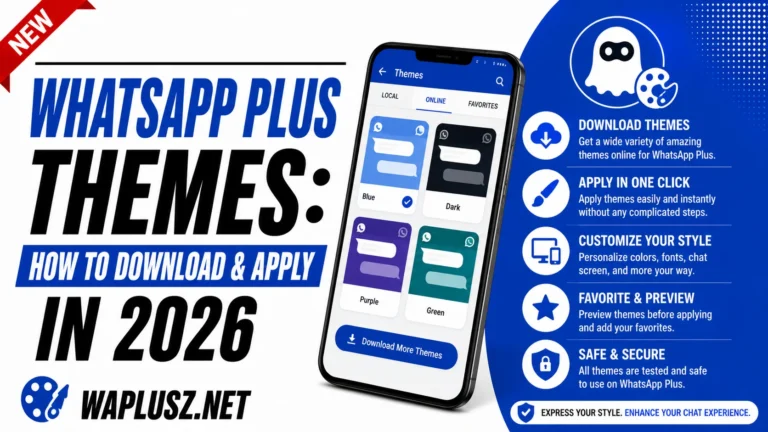
Themes Broken
- Theme Won’t Apply
- Force close from recent apps and reopen. If it still fails, the theme was built for a different version.
- App Looks Broken After a Theme
- Elements overlapping means a version mismatch. Revert to default and pick another.
- Themes Vanished After Updating
- Expected. Updates reset theme settings. Reapply from your exported file, which is why exporting matters.
- Text Unreadable
- Poor contrast in the theme. Some builds let you override font colour separately.
Backup and Restore Problems
- No Restore Prompt
- The app only offers restore during first setup, and it looks in its own folder. If the prompt didn’t appear, the backup isn’t where it’s looking. Place the file correctly and reinstall.
- Backup Says Corrupted
- Try an older file from the same Databases folder, since several dated backups are usually kept.
- Chats Restored, Media Missing
- The database restored and the Media folder didn’t. Copy that folder across separately.
- Only Recent Chats Came Back
- You restored a partial or old file. Check the folder for a larger one.
- Backup Won’t Restore into Official WhatsApp
- Common. Mod backup formats have drifted from official ones. Your data is still in the folder, so keep it.
Features Stopped Working
Almost always updates. Manual installs reset the mod’s settings, and people assume a feature broke when it just switched off.
- Open the mod’s settings.
- Go through the privacy menu and re-enable what you use.
- Check anti-delete, which has separate toggles for messages and statuses.
- Check auto reply and its time window.
- Reapply your theme from your exported file.
Screenshot your settings menu once. Restoring then takes a minute instead of an evening of hunting.
Account Banned
Separate problem with a separate guide, and the short version:
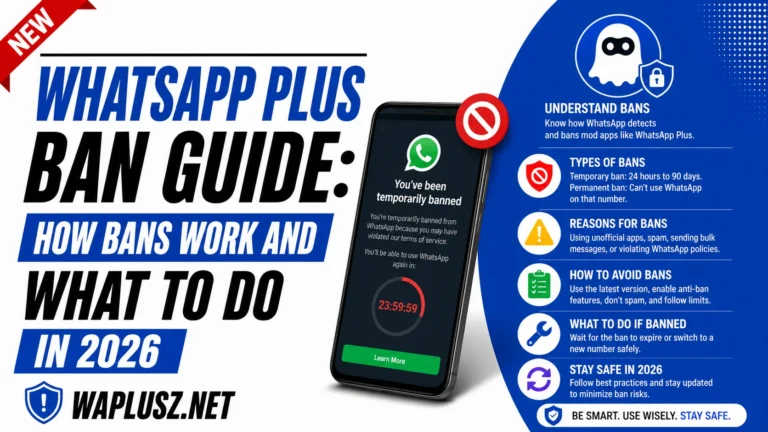
- Temporary ban: Wait it out. Don’t reinstall, don’t switch builds, don’t open it repeatedly.
- Permanent ban: Copy your backup folder off the phone, install official WhatsApp, appeal from there.
- What doesn’t work: Another mod, a higher anti-ban number, a VPN, clearing data.
The full version is in the ban guide on WAPLUSOFICIAL.NET.
When It’s Not Fixable
Some things aren’t your setup.
WhatsApp pushes detection updates that break mods across the board. When that happens, thousands of people hit the same wall the same week, and no amount of cache clearing helps. You wait for the developer to patch it.
If your build stopped working and nothing here helps, check whether others are reporting the same thing. If they are, it’s the cycle rather than your phone.
That cycle is the underlying cost of running a mod. Not a bug, just how it works.
Practical Prevention
- Back up weekly and copy it off your phone, since local-only backups die with the device.
- Screenshot your settings so updates cost you a minute.
- Export your theme for the same reason.
- Whitelist the app in battery settings, which prevents most notification problems outright.
- Keep some free storage, because downloads and backups fail quietly without it.
- Use a spare number, which turns the worst-case outcome into an inconvenience.
- Don’t clear app data when troubleshooting, as it wipes your chats. Clear cache only.
The One Fix That Prevents Most of This
Weekly backups, copied somewhere off your phone.
Nearly everything above is annoying but survivable if your history is safe. The problems that actually hurt people aren’t crashes or notifications, they’re the ones where a phone dies or an app breaks and years of conversations go with it.
A folder copied to a computer costs you two minutes a week. It’s the single best habit for anyone running WhatsApp Plus.